Lupane State University - Application Instructions

Lupane State University

Degree Program Application Instructions

Application Instructions

  1. Payment of Application Fee

    Make sure you have paid the application fee using one of the following banking details:

    Bank Account Type Branch Account Number
    AFC Bank ZIG 8th Avenue Branch Bulawayo 100001098367
    Nostro 8th Avenue Branch Bulawayo 100004951071
    CABS Bank ZIG Jason Moyo Bulawayo 1152662872
    Nostro 8th Avenue Branch Bulawayo 1152662880
    CBZ Bank ZIG 8th Avenue Branch Bulawayo 01222477650019
    Nostro 8th Avenue Branch Bulawayo 01222477650039
    FBC Bank ZIG Jason Moyo Bulawayo 1120153300111
    Nostro Jason Moyo Bulawayo 1120153300112
  2. Create Your Applicant Account

    Before you begin, create an Applicant account using your email address and a password you will remember.

    This is the same account you will use to log in periodically to track your application status, view admission progress, and continue or submit your application.

    If you already have an account, log in with that email and password — do not create a duplicate account.

  3. Program Selection

    After creating your Applicant account and reading these instructions, log in and select the programme you are applying for from the available options.

  4. Complete Application Information

    Fill in all necessary information starting from General Information through to the final step of the application.

  5. Document Upload

    Upload the following documents separately, ensuring each document is less than 2MB in size:

    • O-Level Certificate/Results
    • A-Level Certificate/Results
    • Birth Certificate
    • National ID / Passport Identification page
    • Diploma/Degree/Masters Transcript(s) (if applicable)
  6. NB: IF YOU HAVE MORE THAN ONE SITTING PER LEVEL (E.G O-LEVEL, A-LEVEL, DIPLOMA, DEGREE),

    MAKE SURE YOU SCAN THE CERTIFICATES INTO ONE PDF PER LEVEL AND UPLOAD

    (EACH LEVEL ON ITS OWN) AND SHOULD BE LESS THAN 2MB EACH.

    UPLOAD PDF DOCUMENTS ONLY

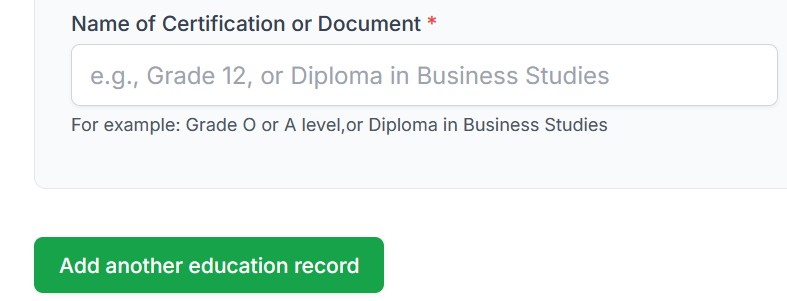
    NB: How to add another document CLICK THE BUTTON ("Add another education record")

    How to add another education record
  7. Next of Kin Details

    Fill in the next of kin details correctly.

  8. Sponsor Information

    Fill in the sponsor information correctly.

  9. Proof of Payment

    Upload your Proof of Payment.

  10. Cohort Selection

    Choose your preferred cohort location where you will be attending lessons (e.g., Harare, Bulawayo, Lupane).

Important Notes:

  • Ensure all information provided is accurate and verifiable
  • Keep your proof of payment receipt for reference
  • You will receive a confirmation email once your application is received
  • All uploaded documents must be clear and legible
  • Application fee is non-refundable
  • Keep your Applicant account login details safe — you will need them to track your application status
  • Upload PDF Documents Only

By clicking "Start Application", you confirm that you have read and understood all instructions above and are ready to create or log in to your Applicant account and proceed with your application.